Download MBXHub
The .45 Single
v0.45
| What's Included | Description |
|---|---|
| mb_MBXHub.dll | A-Side: REST API, WebSocket, Dashboard, Discovery |
| mb_MBXQ.dll | B-Side: MBXShuffle + MBXGuard |
| MBXHub-Firewall.exe | Firewall configuration utility |
Installation
Step 1: Download & Extract
Download the .45 Single and extract all files.
Step 2: Copy to Plugins
Copy all files to your MusicBee Plugins folder:
- Default:
C:\Program Files (x86)\MusicBee\Plugins\ - Portable:
[MusicBee folder]\Plugins\
Step 3: Configure Firewall
Run MBXHub-Firewall.exe to allow network access. Click Yes on the UAC prompt.
Step 4: Start MusicBee
Launch MusicBee. MBXHub and MBXQ load automatically.
Step 5: Open Dashboard
Open a browser:
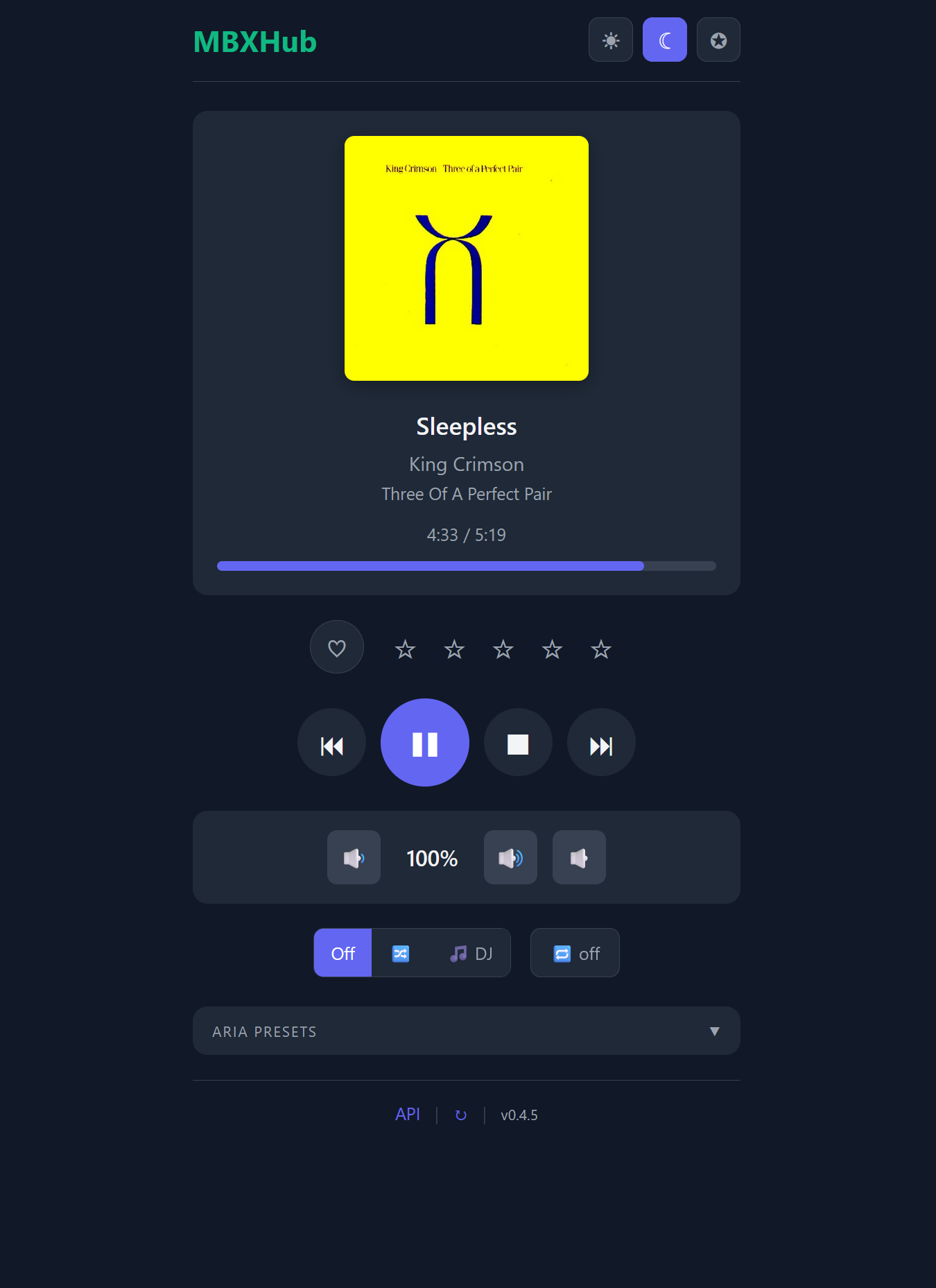
http://localhost:8080You should see the Now Playing dashboard:
System Requirements
| Component | Requirement |
|---|---|
| Operating System | Windows 10 or later |
| MusicBee | MusicBee 3.x or later |
| Framework | .NET Framework 4.8 (included with Windows 10+) |
Configuration
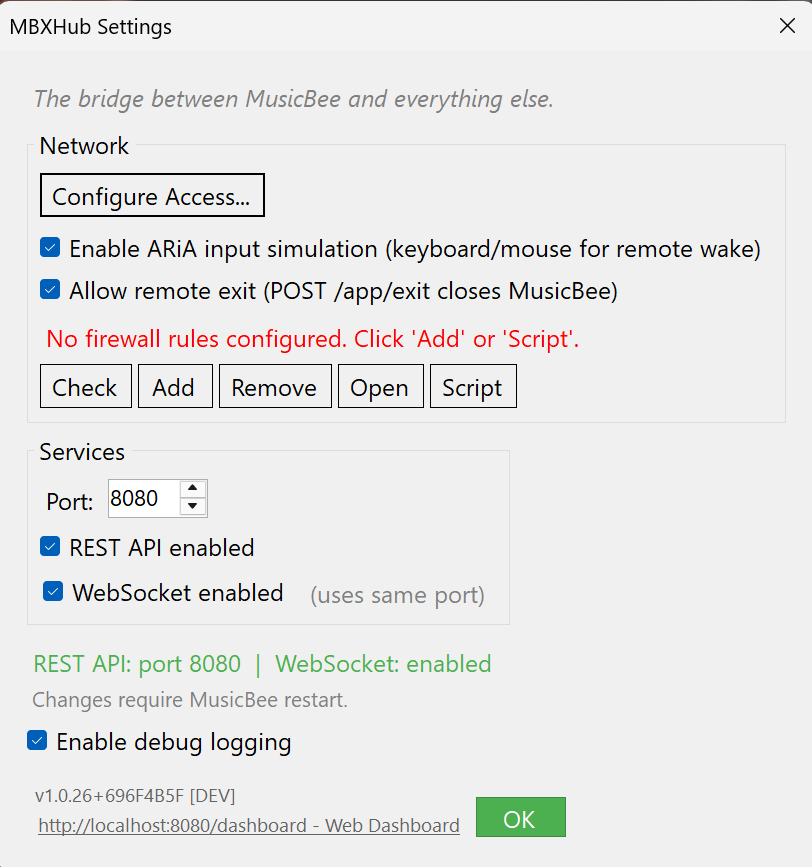
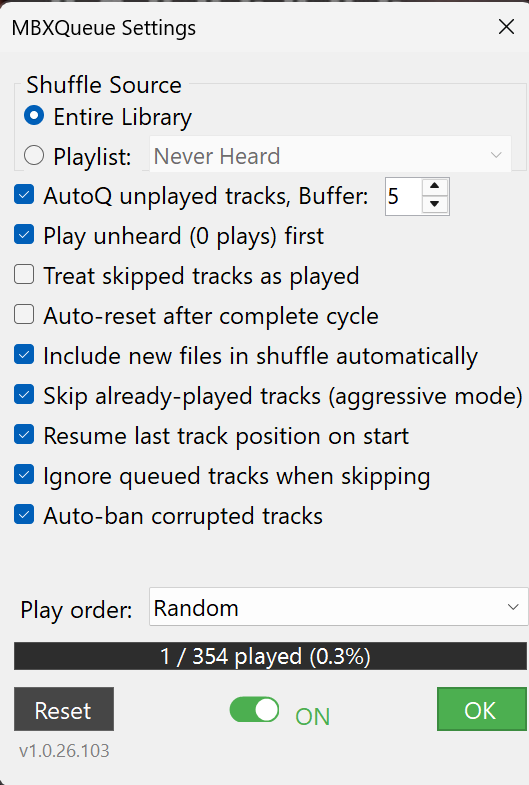
Open MusicBee → Edit → Preferences → Plugins → Configure
MBXHub
MBXQ
Settings and logs are stored in:
%AppData%\MusicBee\MBXHub\Files:
mbxhub.json- Configuration (ports, enabled modules)mbxhub.log- Debug log (when debug mode enabled)
Default Ports
| Service | Port |
|---|---|
| REST API + Dashboard | 8080 |
| WebSocket | 8080 |
Troubleshooting
| Issue | Solution |
|---|---|
| Port already in use | Open MusicBee → Edit → Preferences → Plugins → MBXHub → Configure to change port |
| Connection refused | Run MBXHub-Firewall.exe to add firewall rules, or manually allow inbound TCP on port 8080 |
| Plugin not loading | Verify DLL is in correct Plugins folder |